
- What Makes a Collaboration Tool Effective
- Types of Collaboration Tools by Function
- Top Collaboration Tools Compared
- Choosing Tools for Different Team Sizes and Structures
- Key Features That Boost Team Productivity
- How to Evaluate and Implement Collaboration Tools
- Common Mistakes When Selecting Team Collaboration Software
Selecting the right collaboration platform can mean the difference between a team that moves fast and one that drowns in miscommunication. With hundreds of tools claiming to solve your workflow problems, the choice isn’t about finding the “best” tool—it’s about finding the right fit for how your team actually works.
Most companies make this decision backward. They pick a popular platform, force their team to adapt, and wonder why adoption stalls at 40%. The smarter approach starts with understanding what makes collaboration software truly effective, then matching those capabilities to your team’s specific needs.
What Makes a Collaboration Tool Effective
An effective collaboration tool does more than host conversations. It reduces friction in daily work by bringing essential functions into a single, accessible space.
Real-time communication forms the foundation. Whether through messaging, comments, or live document editing, teams need to exchange information without waiting for email responses. The best platforms make it easy to switch between quick questions and deeper discussions without losing context.
File sharing and version control prevent the “final_final_v3” problem. When everyone works from the same source files with automatic syncing, you eliminate confusion about which document contains the latest changes. Look for tools that handle previews, permissions, and search without requiring downloads.
Project tracking capabilities vary widely. Some teams need simple task lists; others require Gantt charts, dependencies, and resource allocation. The key is visibility—everyone should understand what needs doing, who’s responsible, and what’s blocking progress.
Integration depth matters more than breadth. A tool that connects to your existing software stack—CRM, calendar, cloud storage, development tools—reduces context switching. Shallow integrations that only send notifications aren’t enough; you want bidirectional data flow.
Security and compliance can’t be afterthoughts, especially for regulated industries. Enterprise-grade tools provide single sign-on, audit logs, data residency controls, and granular permissions. Smaller teams still need encryption and reliable backups.

Types of Collaboration Tools by Function
Collaboration software splits into distinct categories, each solving different problems.
Communication platforms like Slack and Microsoft Teams center on messaging and calls. They excel at quick exchanges, informal discussions, and building team culture through channels and threads. These work best when your primary challenge is scattered communication across email, text, and ad-hoc meetings.
Project management tools such as Asana, Monday.com, and ClickUp focus on task organization and workflow visualization. They answer “what’s the status?” and “who’s working on what?” These suit teams where work happens in defined projects with clear deliverables and deadlines.
Document collaboration platforms, including Google Workspace and Microsoft 365, prioritize co-authoring and file management. Multiple people can edit simultaneously while maintaining version history. Choose these when document creation and review cycles dominate your workflow.
Video conferencing tools like Zoom and Google Meet handle face-to-face interaction at scale. While many platforms now bundle video features, standalone tools often provide better quality, larger meetings, and advanced features like breakout rooms and webinar modes.
All-in-one collaboration suites attempt to combine these functions. Notion, for example, merges documents, databases, and project tracking. Microsoft Teams bundles chat, video, file storage, and integrations with Office apps.
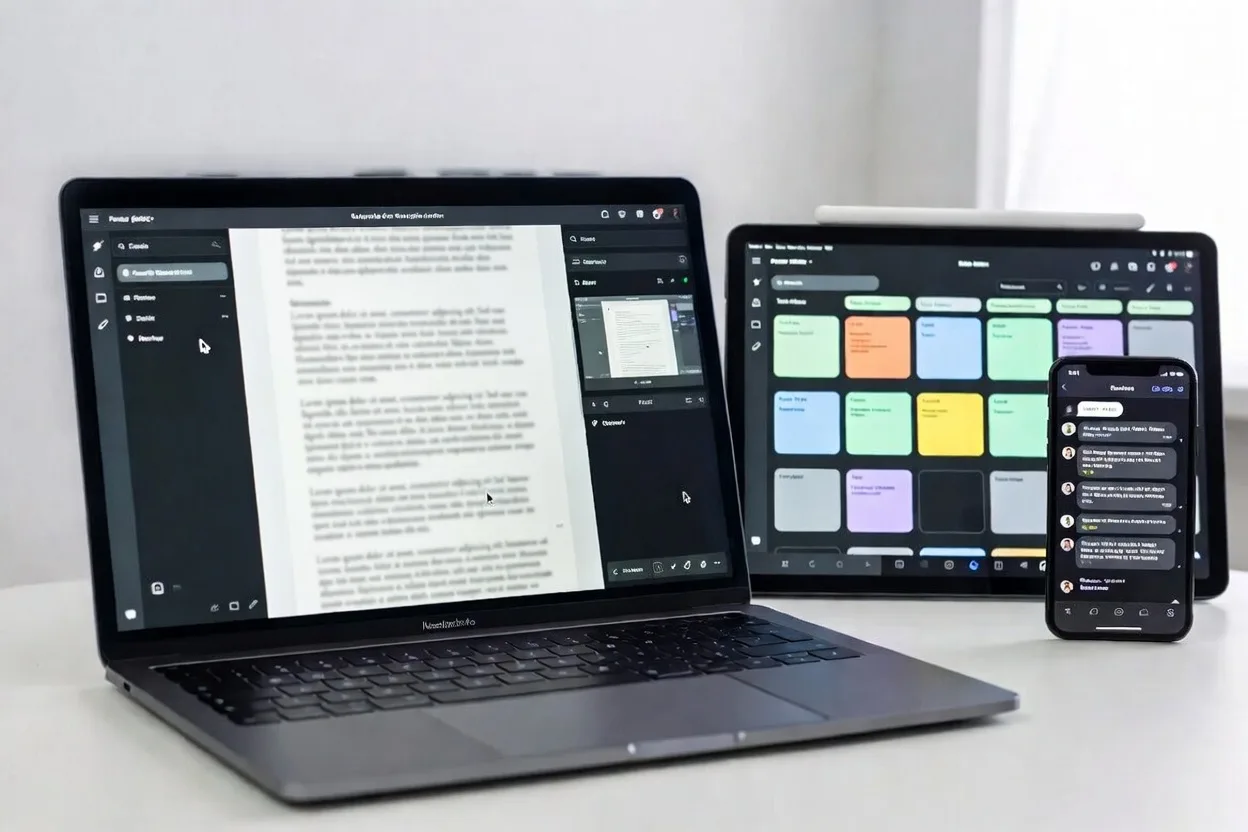
All-in-One vs. Specialized Tools
The integrated suite approach offers convenience. One login, one interface, one bill. Data flows naturally between features—a conversation becomes a task, which links to a document. Training is simpler when people learn a single system.
The trade-off? All-in-one tools rarely excel at everything. Their project management might lag behind dedicated tools. Their document editor might lack advanced features. You’re betting that “good enough” across functions beats “excellent” at one thing.
The best-of-breed approach chains together specialized tools, each chosen for specific strengths. You might use Slack for communication, Asana for projects, and Google Docs for documents. This works when your team values depth of features and doesn’t mind switching between apps.
Integration quality determines success here. If your tools connect smoothly through APIs or platforms like Zapier, you get both specialization and cohesion. Poor integration creates information silos and duplicate data entry.
Most teams land somewhere in between. They pick an all-in-one suite for core functions, then add specialized tools for specific needs—a design tool here, a development platform there.

Top Collaboration Tools Compared
Slack remains the communication standard for tech-forward teams. Its strength lies in organized conversations through channels, powerful search, and an ecosystem of thousands of integrations. Best for teams that live in chat and need deep customization. Weaknesses include limited native project management and video features.
Microsoft Teams dominates enterprise environments, especially those already using Office 365. Tight integration with Word, Excel, and SharePoint makes document collaboration seamless. The platform handles large organizations well with robust admin controls. It can feel overwhelming for small teams and the interface has a steeper learning curve.
Asana focuses purely on project and task management with clean workflows and multiple view options (lists, boards, timelines). It excels at tracking complex projects with dependencies and milestones. Communication features exist but feel secondary. Ideal for teams where project visibility matters more than chat.
Monday.com offers highly visual, customizable workflows that non-technical teams can adapt. Its colorful interface and flexible boards work across departments—marketing campaigns, sales pipelines, product development. The trade-off is complexity; with so many options, teams can over-engineer their setup.
Notion combines wikis, databases, and documents into a flexible workspace. Teams use it for knowledge management, project tracking, and collaborative documentation. It shines for content-heavy work and building internal resources. Real-time collaboration has improved but still lags behind Google Docs.
ClickUp attempts to replace multiple tools with customizable task management, docs, goals, and time tracking. Power users appreciate the depth; others find it cluttered. Best for teams willing to invest time in configuration to match their exact workflow.
Google Workspace (Docs, Sheets, Drive, Meet) provides reliable document collaboration and video conferencing. Nearly everyone knows how to use it, and the free tier works for small teams. Limited project management capabilities mean most teams supplement with other tools.
Zoom remains the video conferencing leader for reliability and scale. While competitors have closed the gap, Zoom’s consistent quality and features like polling and breakout rooms keep it relevant. The platform has expanded into team chat and phone service, though most users still view it primarily for meetings.
| Tool | Starting Price | Key Features | Best For | Free Plan Available |
|---|---|---|---|---|
| Slack | $7.25/user/month | Channels, integrations, search, workflows | Tech teams, chat-first culture | Yes (limited history) |
| Microsoft Teams | $4/user/month | Office integration, enterprise security, video | Large organizations, Microsoft shops | Yes (basic features) |
| Asana | $10.99/user/month | Task management, timelines, portfolios | Project-focused teams | Yes (up to 15 users) |
| Monday.com | $8/user/month | Visual workflows, automation, dashboards | Cross-functional teams | Yes (up to 2 users) |
| Notion | $8/user/month | Wikis, databases, docs, templates | Knowledge-heavy teams | Yes (unlimited individuals) |
| ClickUp | $7/user/month | Tasks, docs, goals, time tracking | Teams wanting all-in-one | Yes (unlimited tasks) |
| Google Workspace | $6/user/month | Docs, Sheets, Drive, Meet, Gmail | Document collaboration | Yes (limited storage) |
| Zoom | $14.99/host/month | Video meetings, webinars, phone | Meeting-heavy organizations | Yes (40-min group limit) |
Choosing Tools for Different Team Sizes and Structures
Small teams under 20 people prioritize simplicity and cost. They need core features without administrative overhead. Free tiers often suffice initially, with paid plans adding unlimited history or storage. A simple combination—Slack for chat, Google Workspace for docs—covers most needs without complexity.
Mid-size teams (20-200 people) face coordination challenges as informal communication breaks down. They need clearer project visibility, better search, and some administrative controls. This is when investing in project management tools pays off, and when integration between tools becomes critical to avoid information fragmentation.
Cross-functional team tools must bridge different working styles. Engineers want integrations with GitHub and Jira. Marketers need campaign calendars and asset libraries. Sales teams live in the CRM. The collaboration platform either needs to connect all these systems or provide enough flexibility that each function can work their way while maintaining shared visibility.
Remote and hybrid teams require different features than co-located ones. Asynchronous communication becomes essential—good threading, video messages, and comprehensive documentation reduce the need for everyone to be online simultaneously. Time zone display, status indicators, and recording capabilities for meetings help distributed teams stay aligned.
Scalability matters when you’re growing fast. Can the tool handle 1,000 users as easily as 100? Do per-user costs scale linearly or are there volume discounts? Will your custom workflows and integrations break when you upgrade tiers?
Collaboration Tools for Large Teams and Enterprises
Enterprise collaboration tools add layers of control and security that small teams don’t need but large organizations can’t live without.
User management at scale requires single sign-on (SSO) integration with identity providers like Okta or Azure AD. When someone leaves the company, one deactivation should revoke all access. Provisioning and de-provisioning hundreds of users manually isn’t sustainable.
Security controls include data loss prevention, encryption at rest and in transit, and audit logs tracking who accessed what information. Compliance certifications (SOC 2, HIPAA, GDPR) matter for regulated industries. Some enterprises require on-premise deployment or specific data residency guarantees.
Administrative features like usage analytics, custom roles, and department-level settings help manage complexity. Large organizations need to see adoption metrics, identify inactive users, and enforce policies across divisions.
Support and service-level agreements (SLAs) differentiate enterprise tiers. When 5,000 employees depend on a platform, you need guaranteed uptime, dedicated support contacts, and faster response times than community forums provide.
Change management becomes a project in itself. Rolling out new collaboration tools across thousands of users requires training programs, champion networks, and phased deployment. Enterprise vendors typically provide implementation support and customer success managers.
Key Features That Boost Team Productivity
Automation eliminates repetitive tasks. Good collaboration platforms let you create workflows—when a task moves to “Done,” notify the client; when someone joins a channel, send them onboarding resources; when a form is submitted, create a project. These small automations compound into significant time savings.
Mobile access isn’t optional anymore. Team members need to check updates, respond to urgent messages, and approve requests from anywhere. The mobile experience should be thoughtfully designed, not just a web wrapper. Push notifications must be configurable to avoid alert fatigue.
Search functionality determines how useful your collaboration tool becomes over time. As conversations and documents accumulate, finding that decision from three months ago or that file someone shared becomes critical. Advanced search with filters (date, person, channel, file type) and preview snippets makes institutional knowledge accessible.
Notification management prevents tool overload. The ability to customize what triggers alerts, set do-not-disturb schedules, and create notification hierarchies (urgent vs. normal) keeps teams engaged without burning them out. Poor notification design is the fastest way to drive users back to email.
Analytics and reporting provide visibility into team performance and tool adoption. Managers want to see project progress, bottlenecks, and workload distribution. Administrators need usage statistics to justify costs and identify training needs. The best tools make this data accessible without requiring data science skills.
Third-party integrations extend functionality beyond native features. The collaboration tool becomes a hub connecting your entire software ecosystem. Look for platforms with robust APIs, webhook support, and active developer communities. Pre-built integrations with popular tools (Salesforce, HubSpot, Jira, GitHub) save implementation time.
How to Evaluate and Implement Collaboration Tools
Start by mapping current workflow gaps. Where does communication break down? What information gets lost? Which tasks take longer than they should? Document specific pain points rather than vague desires to “improve collaboration.” You might discover that you don’t need a new tool—you need better processes.
Involve stakeholders from different teams early. The tool IT loves might frustrate designers. What works for project managers might not fit engineers’ workflows. Create a selection committee representing different functions and working styles. Their buy-in during evaluation ensures smoother adoption later.
Define clear evaluation criteria before you start trials. Weight factors like ease of use, integration capabilities, cost, security, and specific features you need. Score each tool objectively against these criteria rather than going with gut feelings or vendor charm.
Run structured trials with real work. Most platforms offer 14-30 day trials. Don’t just click around—assign actual projects, invite real team members, and test your most common workflows. Try importing existing data. Test integrations with your current tools. Push the limits to find breaking points.
Measure adoption, not just deployment. Rolling out a tool company-wide doesn’t mean people use it effectively. Track active users, feature utilization, and whether people revert to old habits (like email). Survey users about friction points. Early adoption metrics predict long-term success.
Plan your rollout strategically. Trying to migrate everyone at once usually fails. Start with a pilot team that’s enthusiastic and influential. Learn from their experience, refine your approach, create internal champions, and document best practices before expanding.
Training needs vary by tool complexity and user technical comfort. Some platforms require formal training sessions; others people pick up intuitively. Create self-service resources (videos, quick-start guides, FAQs) for ongoing reference. Schedule office hours where people can ask questions.

Common Mistakes When Selecting Team Collaboration Software
Choosing based on price alone ignores total cost of ownership. A cheap tool that frustrates users or lacks key integrations costs more in lost productivity than a pricier option that works smoothly. Factor in implementation time, training costs, and potential need for supplementary tools.
Overlooking user experience leads to low adoption. A powerful tool with a clunky interface sits unused while people revert to email and spreadsheets. During trials, pay attention to how quickly new users accomplish tasks, not just whether features exist. Friction adds up.
Ignoring integration needs creates data silos. If your collaboration tool doesn’t connect to your CRM, project management system, or file storage, you’ll spend time copying information between systems. Map your current tool ecosystem and verify integration quality, not just existence.
Failing to plan for change management treats software selection as a technical decision rather than an organizational one. People resist new tools that disrupt familiar workflows. Successful implementations include communication plans, training programs, and strategies for handling resistance.
Picking tools that match current size but not growth trajectory causes painful migrations later. If you’re growing fast, choose platforms that scale. Switching collaboration tools after two years wastes the time invested in setup, training, and accumulated data.
Following trends without assessing fit means adopting tools because competitors use them or they’re getting buzz. What works for a tech startup might not fit a manufacturing company. Your workflows, team structure, and culture should drive the decision, not what’s popular.
Underestimating the importance of vendor stability and support matters more than features. A tool that shuts down or gets acquired and abandoned disrupts your entire operation. Research the company’s financial health, track record, and commitment to the product.
The most successful digital workplaces don’t just adopt collaboration tools—they reimagine work processes around them. When teams treat new platforms as opportunities to eliminate outdated workflows rather than simply digitizing old habits, productivity gains can reach 30-40%.
Dr. Sarah Chen, Organizational Psychologist and author of Connected Teams
FAQs
No single tool wins for all remote teams, but Microsoft Teams and Slack lead for different reasons. Teams excels when your organization already uses Microsoft 365, providing tight integration with Office apps and strong video capabilities. Slack works better for tech-forward teams prioritizing chat-based culture and extensive integrations. Remote teams should prioritize tools with robust asynchronous features (threaded conversations, video messages, comprehensive search) and reliable mobile apps, since team members work across time zones and locations.
Budget $5-15 per user monthly for most teams, with enterprise plans ranging $15-30+ per user. Free tiers work for very small teams but typically limit features, storage, or history. Consider total cost including integrations, add-ons, and administrative time. A $10 tool that eliminates three $5 tools saves money and complexity. Calculate cost per user against productivity gains—if a tool saves each person even 30 minutes weekly, the ROI is clear. Volume discounts kick in around 50-100 users for most platforms.
Communication tools focus primarily on conversations—messaging, calls, and video meetings. Think Slack, Discord, or Zoom. Collaboration platforms add structured work management like tasks, projects, documents, and workflows. They answer not just “what did we discuss?” but “what needs doing and who’s responsible?” Many tools blur these lines now. Microsoft Teams combines communication with Office integration. Notion adds chat to its document platform. The distinction matters less than whether a tool matches how your team actually works—some teams collaborate primarily through conversation, others need structured project tracking.
Basic adoption—people logging in and using core features—typically takes 2-4 weeks with proper onboarding. Reaching the point where the tool becomes the default way of working requires 2-3 months. Full adoption, where teams leverage advanced features and build new workflows around the platform, can take 6-12 months. Adoption speed depends on tool complexity, team size, quality of training, and whether you’re replacing familiar tools or filling a gap. Forcing immediate migration from old tools usually backfires; running tools in parallel during transition, while inefficient short-term, leads to better long-term adoption.
The collaboration tools you choose shape how your team works, communicates, and ultimately performs. There’s no universal “best” platform—only the right fit for your specific needs, team structure, and working style.
Start with clear problems you’re trying to solve rather than feature checklists. Involve your team in evaluation and trials. Test tools with real work, not just demos. Consider both current needs and where you’ll be in two years.
Remember that tools alone don’t create collaboration—they enable it. The best platform poorly implemented fails. A simpler tool with strong adoption and clear processes outperforms a powerful platform no one uses correctly.
Take time to get this decision right. Your collaboration infrastructure is as fundamental as your office space or network—it’s where work happens. Choose thoughtfully, implement deliberately, and give your team the tools they need to do their best work together.