
When your marketing team in Austin needs immediate access to campaign assets while your developers in Portland are updating documentation, the technology connecting these workflows matters. Cloud file sharing for teams has replaced the chaotic email attachments and fragmented storage systems that plagued workplace collaboration just a few years ago.
Modern businesses operate across time zones, devices, and locations. A centralized system where everyone accesses the same files—with proper permissions and real-time updates—isn’t a luxury anymore. It’s fundamental infrastructure that determines whether teams move fast or stumble over outdated versions and access barriers.
Remote work has fundamentally changed how teams collaborate. Cloud file sharing isn’t just convenient—it’s become essential infrastructure for modern businesses.
Sarah Chen
What Is Cloud File Sharing for Teams
Cloud file sharing for teams is a centralized storage system hosted on remote servers that allows multiple users to upload, access, edit, and manage files from any internet-connected device. Unlike personal cloud storage accounts (like the free tier you might use for family photos), team solutions include administrative controls, permission hierarchies, audit trails, and collaboration features designed for workplace requirements.
The core distinction lies in governance. Personal cloud storage treats every file as belonging to one individual. Team cloud workspace solutions recognize that documents, spreadsheets, and presentations belong to the organization, not the person who created them. This shift changes everything about how files are managed, shared, and secured.
Collaborative features transform static storage into active workspaces. Multiple team members can edit the same document simultaneously, leave comments on specific sections, and track who changed what. Version history preserves previous iterations, so that experimental edit your colleague made last Tuesday doesn’t permanently destroy the original. Activity feeds show file updates, new uploads, and sharing changes without requiring constant email check-ins.
Integration capabilities separate basic storage from true team file sharing platforms. These systems connect with project management tools, communication apps, and specialized software your team already uses. A designer saves an updated logo to the shared folder, and it automatically appears in the marketing team’s presentation template—no manual downloads or re-uploads required.
How Team File Sharing Works
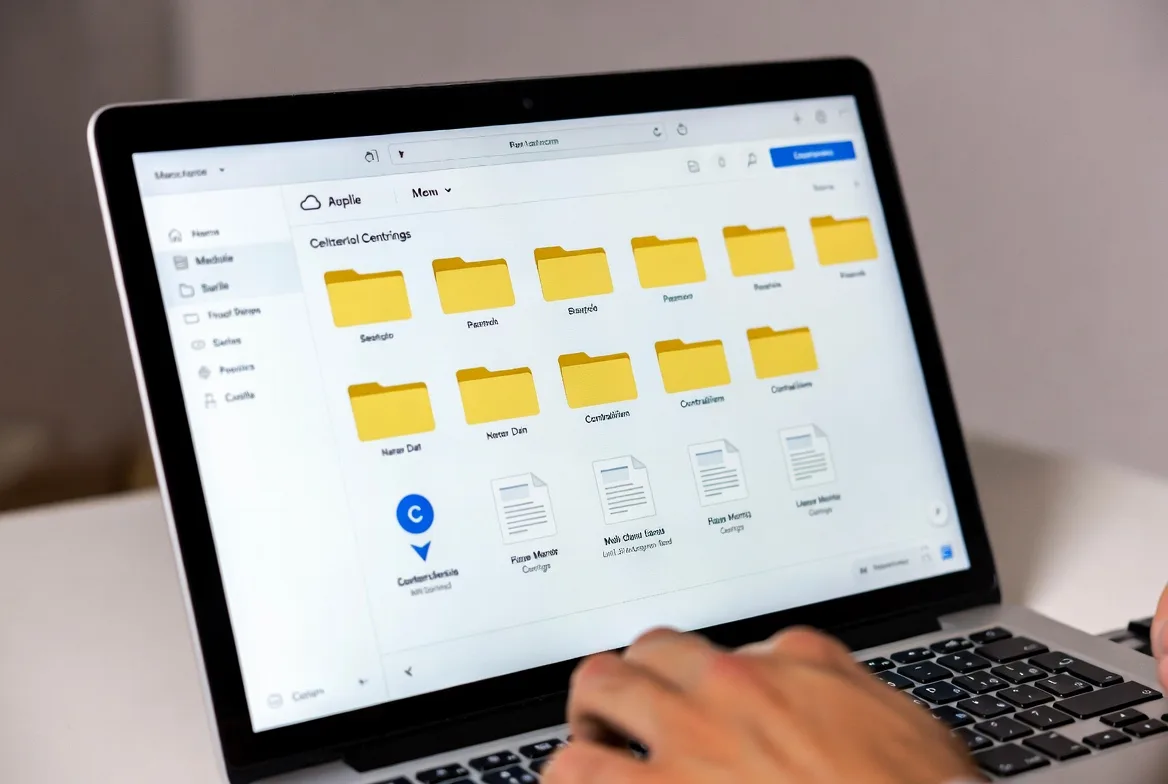
The technical foundation combines three components: synchronization engines, permission frameworks, and collaboration protocols. When someone saves a file to shared cloud storage, the sync engine detects the change and replicates it across the cloud infrastructure. Other team members with access receive the update automatically, either through background sync on their devices or when they next open the file.
Shared file access cloud systems use differential sync to optimize bandwidth. Instead of uploading entire files with each change, the system transmits only the modified portions. Edit a single paragraph in a 50-page report, and the sync engine sends just that paragraph plus metadata—not the entire document. This approach keeps collaboration responsive even with large files or slower connections.
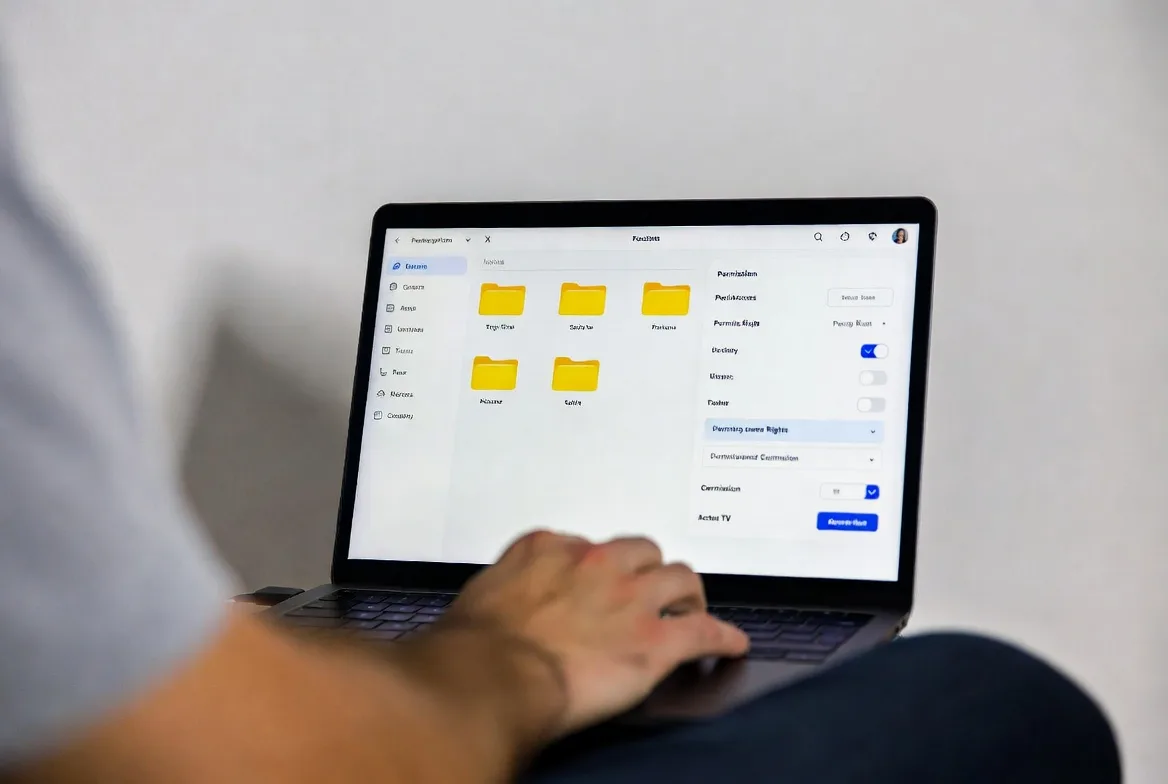
User roles create permission boundaries that protect sensitive information while maintaining workflow efficiency. A typical hierarchy includes:
- Administrators control system settings, manage users, set organization-wide policies, and access all files regardless of individual permissions
- Managers create shared folders, invite members, adjust permissions for their teams, and monitor usage within their departments
- Contributors upload files, edit shared documents, comment on content, and share within permitted boundaries
- Viewers access and download files but cannot modify, delete, or share them further
Permission granularity extends beyond roles. You can grant edit access to specific folders while restricting others to view-only. External collaborators (clients, contractors, freelancers) receive limited access through expiring links or guest accounts that don’t require full system membership.
Real-time collaboration capabilities depend on operational transformation algorithms that reconcile simultaneous edits. When three people edit different sections of the same spreadsheet, the system merges changes without conflicts. If two people modify the same cell, the platform typically implements “last write wins” while preserving version history so nothing gets lost permanently. Presence indicators show who’s currently viewing or editing files, reducing the likelihood of conflicting work.

Key Features to Look for in Team Cloud Workspace Solutions
Evaluating platforms requires matching capabilities to your actual requirements, not just checking feature lists. The most expensive enterprise solution wastes money if your 12-person team never uses advanced compliance tools. Conversely, choosing based solely on price creates friction when the system can’t handle your file sizes or integration needs.
Security and Compliance Requirements
Encryption standards form the baseline. Look for AES 256-bit encryption for data at rest and TLS 1.3 for data in transit. These aren’t optional extras—they’re minimum requirements for protecting business information.
Compliance certifications matter if you operate in regulated industries. Healthcare teams need HIPAA compliance. Financial services require SOC 2 Type II attestation. Government contractors must verify FedRAMP authorization. These certifications confirm that the vendor maintains specific security controls and undergoes regular audits.
Two-factor authentication (2FA) should be mandatory, not optional. Password-only access creates vulnerability, especially when employees reuse credentials across services. Hardware security key support provides stronger protection for accounts with administrative privileges or access to sensitive files.
Data residency controls determine where your files physically reside. Some industries or contracts require data storage within specific geographic boundaries. Verify that your chosen platform offers region selection and doesn’t automatically replicate data across international borders.
Integration with Existing Tools
Native integrations work better than third-party connectors. A collaborative file storage system that directly integrates with your project management software creates seamless workflows. Team members attach files from the cloud workspace without leaving their task interface, and updates flow bidirectionally without manual intervention.
API access enables custom integrations when pre-built connectors don’t exist. Your development team can build workflows that automatically organize uploaded files, trigger notifications based on specific conditions, or extract data for reporting dashboards.
Single sign-on (SSO) integration reduces password fatigue and improves security. Employees authenticate once through your identity provider, then access the file sharing system without separate credentials. When someone leaves the organization, deactivating their central account immediately revokes access to all connected services.
Desktop and mobile clients determine daily usability. Browser-based access works for occasional use, but teams that work with files constantly need native applications. Evaluate sync reliability, offline access functionality, and how gracefully clients handle network interruptions.
Storage Capacity and Scalability
Per-user storage allocations create artificial constraints that don’t match real usage patterns. Your video production team needs terabytes while your sales team uses gigabytes. Pooled storage that the entire organization shares provides flexibility without paying for unused capacity on individual accounts.
File size limits affect specific workflows. Most platforms cap individual files at 5-15 GB, which works fine for documents and presentations but breaks down for video editors, CAD designers, or data scientists working with large datasets. Verify limits before committing, especially if your work involves media production or scientific computing.
Bandwidth throttling policies can surprise teams during peak usage. Some providers slow upload/download speeds after you exceed monthly transfer quotas. Others prioritize traffic during business hours. Understanding these constraints prevents frustration when deadlines approach and file transfers crawl.
Automatic scaling versus manual tier upgrades affects how the system grows with your team. Platforms with automatic scaling adjust storage and features as you add users, while others require administrator intervention to upgrade plans. The former reduces administrative overhead but may cost more; the latter provides budget predictability but creates potential bottlenecks.
Common Team File Management Mistakes to Avoid
Poor folder structure creates chaos that compounds over time. Teams often start with good intentions—a simple hierarchy of departments and projects—then let it deteriorate. Six months later, nobody knows whether the current proposal lives in “Marketing/Q2/Proposals” or “Proposals/2026/Marketing” or someone’s personal folder that got shared after the fact.
Establish naming conventions before problems emerge. Require dates in YYYY-MM-DD format so files sort chronologically. Include version numbers or status indicators (Draft, Review, Final) in filenames. Prohibit vague names like “Document1” or “Final_FINAL_v3_ACTUAL.” These rules feel bureaucratic until you’re searching for the correct contract version at 4:45 PM before a 5:00 PM deadline.
Inadequate permission settings fall into two failure modes: too restrictive or too permissive. Lock everything down, and team members create shadow systems (personal cloud accounts, email attachments) to work around barriers. Grant universal edit access, and someone accidentally deletes the folder containing last quarter’s financial records.
Regular permission audits catch drift. That contractor who finished their project three months ago still has access. The intern who joined for summer break can view executive compensation files. The marketing team can edit engineering specifications. Schedule quarterly reviews where administrators verify that access matches current roles and responsibilities.
Version control negligence destroys work and creates confusion. Cloud document sharing platforms maintain version history automatically, but many teams ignore this feature until disaster strikes. Someone overwrites the presentation with an experimental redesign that doesn’t work. Without version control awareness, that mistake becomes permanent.
Train teams to use version history proactively. Before making major changes, create a named version (“Pre-redesign baseline”). Check previous versions when something looks wrong instead of assuming the current state is correct. Understand your platform’s retention policies—some keep versions for 30 days, others indefinitely, and a few require manual version creation.
Missing backup strategies assume cloud storage equals backup. It doesn’t. Cloud file sharing protects against hardware failure and provides access from multiple devices, but it doesn’t protect against accidental deletion, malicious activity, or account compromise. If someone deletes files (accidentally or intentionally), the sync engine replicates that deletion across all devices.
Implement a separate backup system that captures snapshots at regular intervals. This could be a different cloud service, local storage, or dedicated backup software. The 3-2-1 rule applies: three copies of data, on two different media types, with one copy offsite.
Cloud Document Sharing vs Traditional File Servers
Traditional file servers dominated workplace storage for decades. Organizations purchased physical hardware, installed it in server rooms or data centers, and connected it to their local network. This model worked well when everyone worked in the same building, but remote access required VPNs, security vulnerabilities multiplied, and maintenance consumed IT resources.
| Feature | Cloud File Sharing | Traditional File Server |
|---|---|---|
| Initial cost | Minimal (subscription-based) | $5,000-$50,000+ for hardware and setup |
| Monthly costs | $10-$30 per user | Electricity, maintenance, IT staff time |
| Remote access | Native, any device with internet | Requires VPN, often slow and complex |
| Automatic updates | Included, no downtime | Manual patches, scheduled maintenance windows |
| Security features | Enterprise-grade encryption, automatic backups | Dependent on IT implementation and budget |
| Scalability | Add users/storage instantly | Requires hardware upgrades, capacity planning |
| IT maintenance required | Minimal (vendor-managed) | Significant (patches, backups, monitoring) |
Cost structures differ fundamentally. File servers require upfront capital expenditure—purchasing hardware, software licenses, backup systems, and potentially upgrading network infrastructure. Cloud solutions convert this to operational expense with predictable monthly fees. For a 25-person team, a file server might cost $15,000 initially plus $500 monthly for maintenance, while cloud storage runs $500-750 monthly with zero upfront investment.
Accessibility transformed with remote work normalization. Traditional servers require VPN connections that introduce latency, complexity, and security risks. Employees struggle with VPN authentication, experience slow file transfers, and create workarounds (emailing files to personal accounts) that undermine security. Shared cloud storage provides identical access whether you’re at headquarters, home, or a coffee shop in another country.
Maintenance burden shifts dramatically. File servers need operating system patches, security updates, backup verification, hardware monitoring, and eventual replacement. Small organizations without dedicated IT staff either neglect maintenance (creating security vulnerabilities) or pay consultants hourly rates for routine tasks. Cloud providers handle infrastructure maintenance as part of the subscription, freeing internal resources for business-focused work.
Disaster recovery scenarios reveal stark differences. When a file server fails—hardware malfunction, ransomware attack, natural disaster—recovery depends entirely on your backup implementation and IT expertise. Cloud platforms build redundancy into their architecture. Your files exist across multiple data centers simultaneously. If one facility experiences problems, users never notice because requests route to healthy infrastructure automatically.
How to Choose the Right Shared Cloud Storage for Your Team
Team size influences platform requirements more than most organizations realize. Five-person startups need simplicity and low cost, not enterprise features. Fifty-person companies require administrative controls and integration capabilities. Five-hundred-person enterprises demand compliance certifications, advanced security, and dedicated support.
Start by mapping actual workflows, not hypothetical ones. Shadow your team for a week. What files do they access most frequently? How often do they collaborate in real-time versus asynchronously? Which external tools do they use constantly? Do they work with specialized file types that require specific preview capabilities? These observations reveal requirements that generic feature comparisons miss.
Budget constraints extend beyond subscription fees. Calculate total cost of ownership: per-user licenses, storage overages, premium features, training time, migration effort, and integration development. A platform with a $15 monthly per-user fee might cost less overall than a $10 competitor if the cheaper option requires expensive third-party tools to fill functionality gaps.

Industry-specific requirements narrow options quickly. Legal teams need eDiscovery capabilities and client confidentiality controls. Architecture firms require CAD file support and large file handling. Healthcare organizations must verify HIPAA compliance and business associate agreements. Identify non-negotiable requirements before evaluating platforms to avoid wasting time on incompatible solutions.
Trial period best practices maximize evaluation effectiveness. Don’t just test with one or two power users—involve representatives from each team. Upload realistic file volumes, not sample documents. Test the features you’ll actually use daily, not impressive capabilities you’ll rarely touch. Simulate your worst-case scenarios: simultaneous editing by multiple users, large file uploads on slower connections, mobile access with spotty connectivity.
Pay attention to support quality during trials. Submit a support ticket with a real question and evaluate response time, helpfulness, and technical knowledge. Check whether your subscription tier includes phone support or restricts you to email. Review documentation quality—poorly documented platforms create ongoing frustration and training costs.
FAQs
Modern cloud file sharing platforms often exceed the security capabilities of on-premises systems, especially for small to mid-sized organizations. Enterprise providers implement encryption at rest and in transit, maintain SOC 2 compliance, employ dedicated security teams, and undergo regular third-party audits. The question isn’t whether cloud storage is secure in absolute terms, but whether it’s more secure than your current alternative. A file server managed by an overworked IT generalist with outdated patches typically presents greater risk than a cloud platform operated by security specialists. For highly sensitive data, look for platforms offering customer-managed encryption keys, which ensure even the vendor cannot access your files without your explicit permission.
Pricing ranges from $10-30 per user monthly for standard business plans, with volume discounts available for larger organizations. Entry-level plans (5-10 users) often cost $12-15 per user and include 1-2 TB of pooled storage. Mid-tier plans ($20-25 per user) add advanced admin controls, longer version history, and priority support. Enterprise plans ($30+ per user) include unlimited storage, advanced compliance features, and dedicated account management. Storage-heavy teams should compare per-user versus pooled storage models—video production teams might save money with pooled plans that don’t penalize specific users for large files. Calculate total cost by multiplying per-user fees by team size, then adding estimated storage overages and any required add-ons.
Most team cloud workspace platforms offer selective sync, allowing users to designate specific folders for offline access. Desktop clients download these files to local storage and keep them synchronized when internet connectivity returns. This works well for documents, spreadsheets, and presentations, but large media files can quickly consume laptop storage. Mobile apps typically cache recently accessed files automatically but require manual selection for guaranteed offline availability. Real-time collaboration features obviously require connectivity, so offline access provides read-only functionality or creates local changes that sync and potentially conflict when the device reconnects. Plan offline access around realistic scenarios—cross-country flights, client sites with restricted networks—rather than expecting full functionality without internet.
Proper offboarding procedures transfer file ownership before deactivating accounts. Most platforms allow administrators to reassign all files from a departing employee to their manager or replacement. This preserves access to critical documents, maintains folder structures, and prevents broken links. Without explicit transfer, what happens depends on platform policies. Some automatically transfer ownership to administrators, others place files in a grace period before deletion, and a few immediately remove access for everyone if the original owner’s account closes. The worst scenario occurs when departing employees used personal accounts for work files—you lose access entirely when they leave. This risk alone justifies requiring team members to use organization-controlled accounts for all work-related files.
Migration complexity scales with volume and organization. For small teams with well-organized files, direct upload through desktop clients works fine—create the folder structure in the cloud workspace, then drag and drop from your current storage. Mid-sized migrations benefit from the platform’s migration tools, which many vendors provide free or for a nominal fee. These tools preserve permissions, timestamps, and folder structures while handling large transfers more reliably than manual uploads. Enterprise migrations often require professional services, especially when consolidating from multiple legacy systems or maintaining complex permission schemes. Regardless of scale, migrate in phases rather than all at once. Start with one department or project, verify everything works correctly, then expand. Keep legacy systems running in read-only mode for 30-60 days after migration to catch missed files or unanticipated issues.
Sync maintains identical copies across multiple locations—cloud servers and connected devices. When you edit a file on your laptop, sync replicates that change to the cloud and other team members’ devices. This provides access and collaboration but doesn’t protect against unwanted changes. Delete a file, and sync removes it everywhere. Backup creates point-in-time snapshots that preserve data even after deletion or modification. True backup systems keep multiple versions over extended periods and protect against accidental deletion, ransomware, and account compromise. Many teams mistakenly believe cloud sync provides backup protection. It doesn’t. You need both: sync for collaboration and access, backup for disaster recovery. Some collaborative file storage platforms include limited version history (30-90 days), which provides partial backup functionality but shouldn’t replace dedicated backup systems for critical data.
Cloud file sharing for teams has evolved from a convenient alternative to a fundamental requirement for effective collaboration. The platforms that succeed in 2026 combine robust security, seamless integration, and intuitive user experiences that don’t require constant IT intervention.
Choosing the right system requires honest assessment of your team’s actual needs, not aspirational features you’ll never use. A small creative agency needs different capabilities than a healthcare provider or financial services firm. Match the platform to your workflows, compliance requirements, and budget realities.
Implementation success depends as much on change management as technical capability. The most sophisticated team cloud workspace fails if employees don’t understand permissions, ignore version control, or create shadow systems because the official platform doesn’t fit their workflows. Invest time in training, establish clear policies, and iterate based on real usage patterns.
The organizations that extract maximum value from shared cloud storage treat it as collaborative infrastructure, not just storage space. They design folder structures that match how teams actually work, set permissions that balance security with productivity, and integrate file sharing into broader workflows rather than treating it as an isolated tool.
Your files contain institutional knowledge, client deliverables, and operational data that keep your business running. The system managing that information deserves careful evaluation and ongoing attention, not a hasty decision based solely on price or brand recognition.